Rodok

Signals lists everything your trackers kept, newest first. Each row is one moment at one company, with the person to contact.
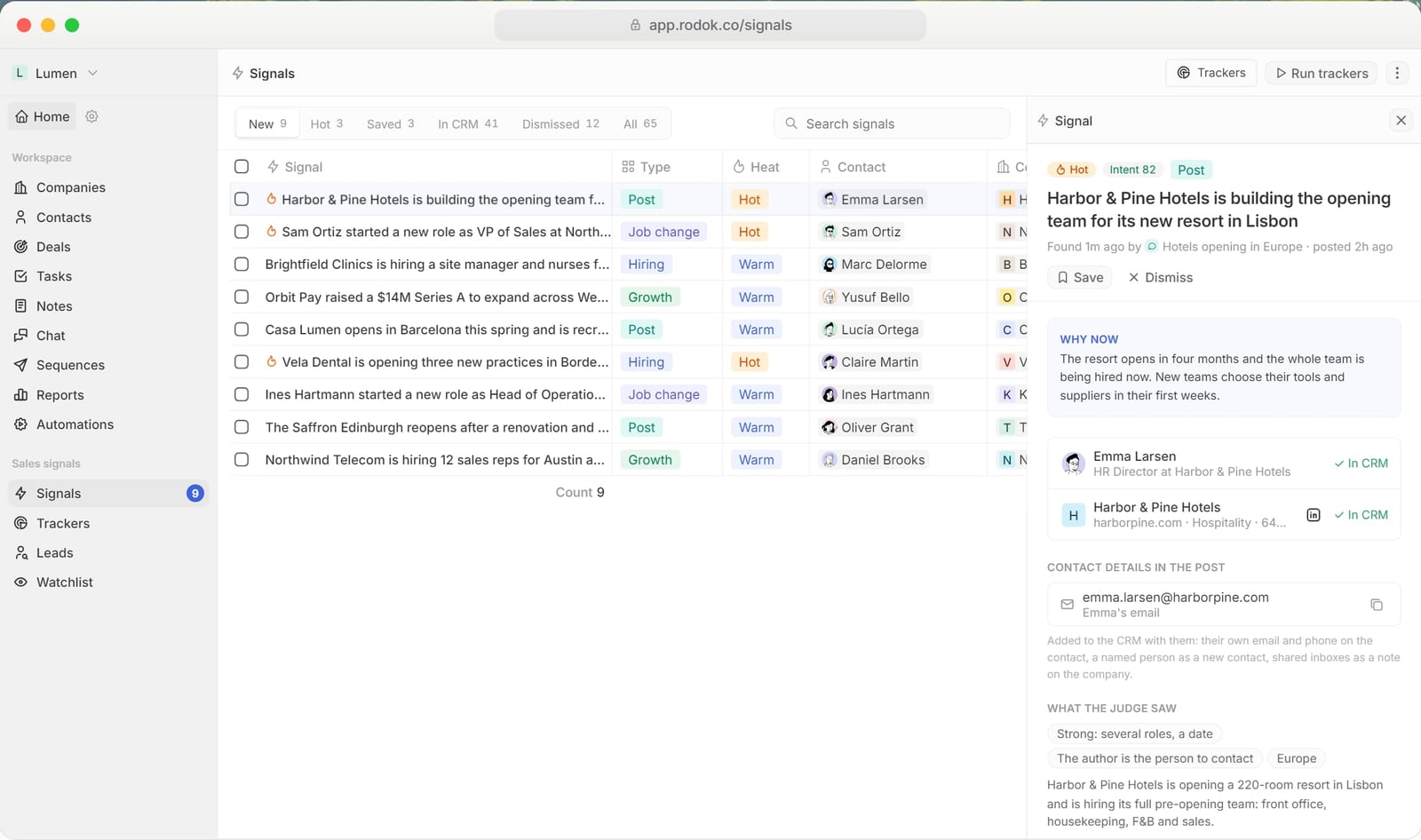
Read a signal
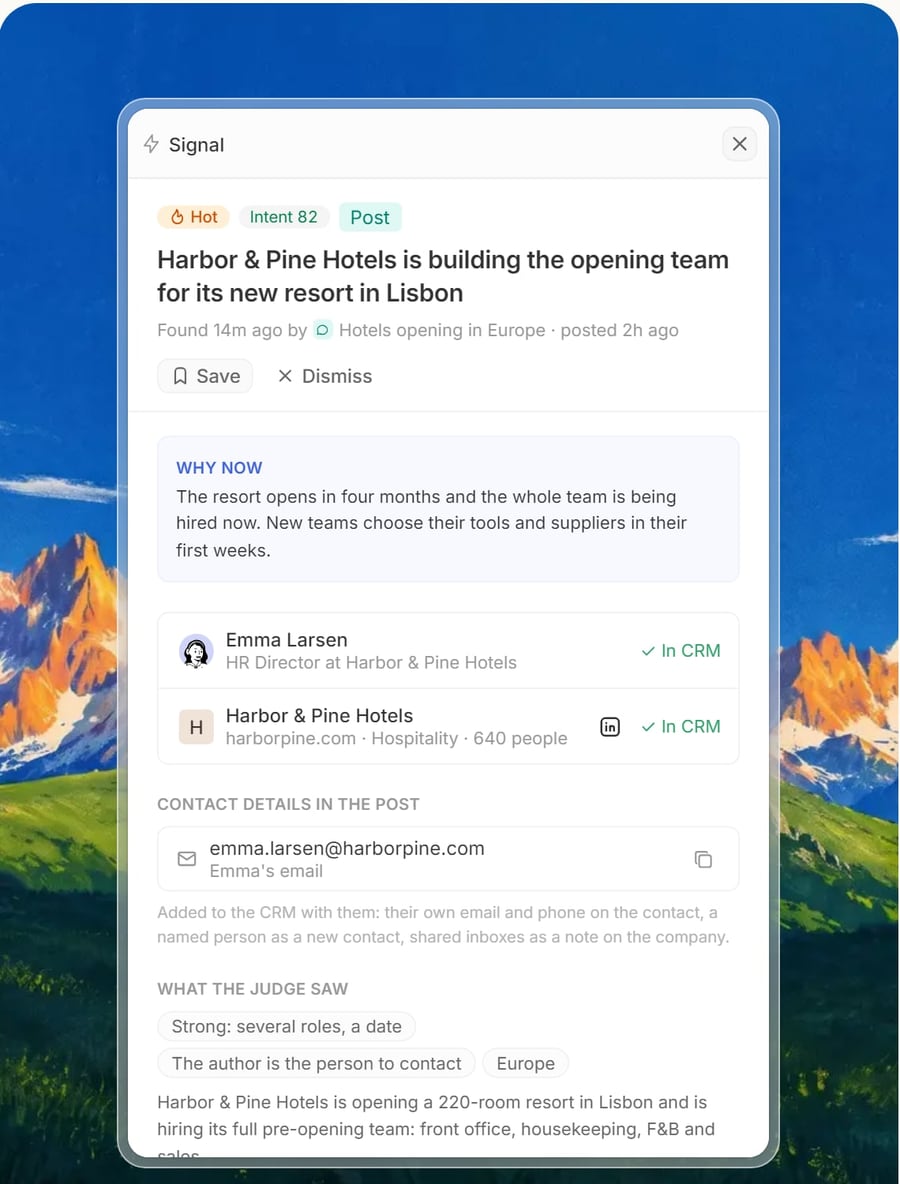
Click a signal to open it. You'll see:
- Why now: what happened and why it matters for what you sell.
- Who to contact: the person behind the signal, with their role and LinkedIn profile.
- The source: the post or change it came from, so you can check it yourself.
- A first message: written for this person and this moment, ready to edit.
A flame marks the hot ones: a strong signal from someone who can decide.
Act on it
Select one or several signals and use the bar that appears:
- Add to CRM: creates the person and their company, enriched from LinkedIn.
- Add to sequence: enrolls contacts in an outreach sequence.
- Save: keeps it for later.
- Dismiss: removes it from your list.
The ⋯ menu has more: mark as done, move back to new, copy LinkedIn links, export to CSV, and delete. A deleted signal never comes back on a later run.
Keep the list clean
- Sort and filter the table like any other in Rodok: by heat, tracker, date or company.
- Work the hot ones first, the same day. A signal loses value quickly.
- If a tracker keeps things you don't want, open it and tighten it. See Create a tracker.
Find their email
A signal gives you the person and their LinkedIn. To get a work email and a mobile, add them to the CRM and click Enrich. See Enrich contacts.